Set up Microsoft 365 Emails on an iPhone

Home / Resources / Set up Microsoft 365 Emails on an iPhone

Set up a Microsoft 365, Exchange, or Outlook email in the iOS Mail app

Step 1
                 Image of a grey line
Go to your iPhone or iPad’s Settings > scroll down and tap Apps > Mail > Mail Accounts >Add Account.
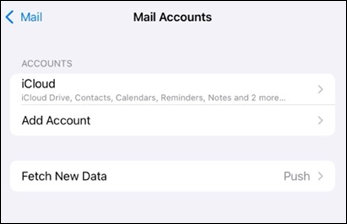
Outlook mobile mail app add account on iOS

Step 2
                 Image of a grey line
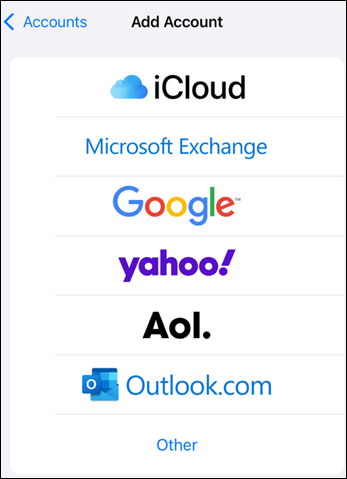
Select Microsoft Exchange.

Outlook mobile mail add account provider options

Step 3
                 Image of a grey line
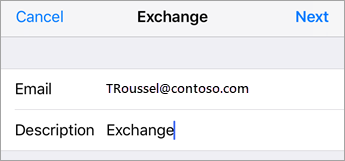
Enter your Microsoft 365, Exchange, or Outlook email address and a description of your account. Tap Next.
Exchange Sign In

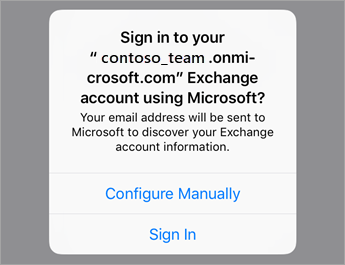
Tap Sign In.

Tap Sign In if using O365 or tap Configure Manually if you have your organizations server settings.

Note

Tap Configure manually if you need to enter server settings.

Step 4
                 Image of a grey line
Enter the password associated with your email account. Tap Sign in or Next.
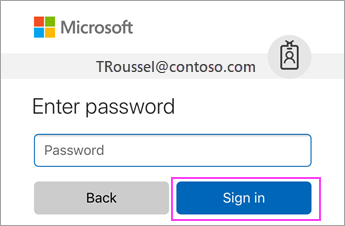
Enter your O365 work or school account password.

Step 5
                 Image of a grey line
The Mail app may request certain permissions. Tap Accept.
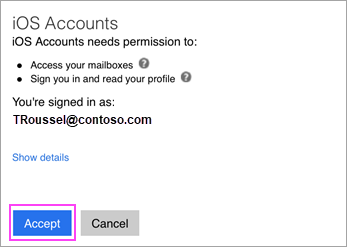
Tap Allow if prompted to give permission.

Step 6
                 Image of a grey line
Choose the services you want to sync with your iOS device and tap Save. You’re done!

Account sync settings