
How to fix 58tm1 error in Outlook in a Windows Computer or a Hosted-Virtual Desktop
Error code
58tm1or2147942403This error is common under Windows Server + FSLogix + M365 setups. The authentication component (Microsoft.AAD.BrokerPlugin) can get mis-registered when a user logs in to a different server the next day and does not cleanly roam with the user.
A permanent solution is to synchronize Active Directory with Azure AD using Azure AD Connect and enable SSO; however, this may not be feasible in certain hosted builds (e.g., Citrix VDAs).
What actually happens
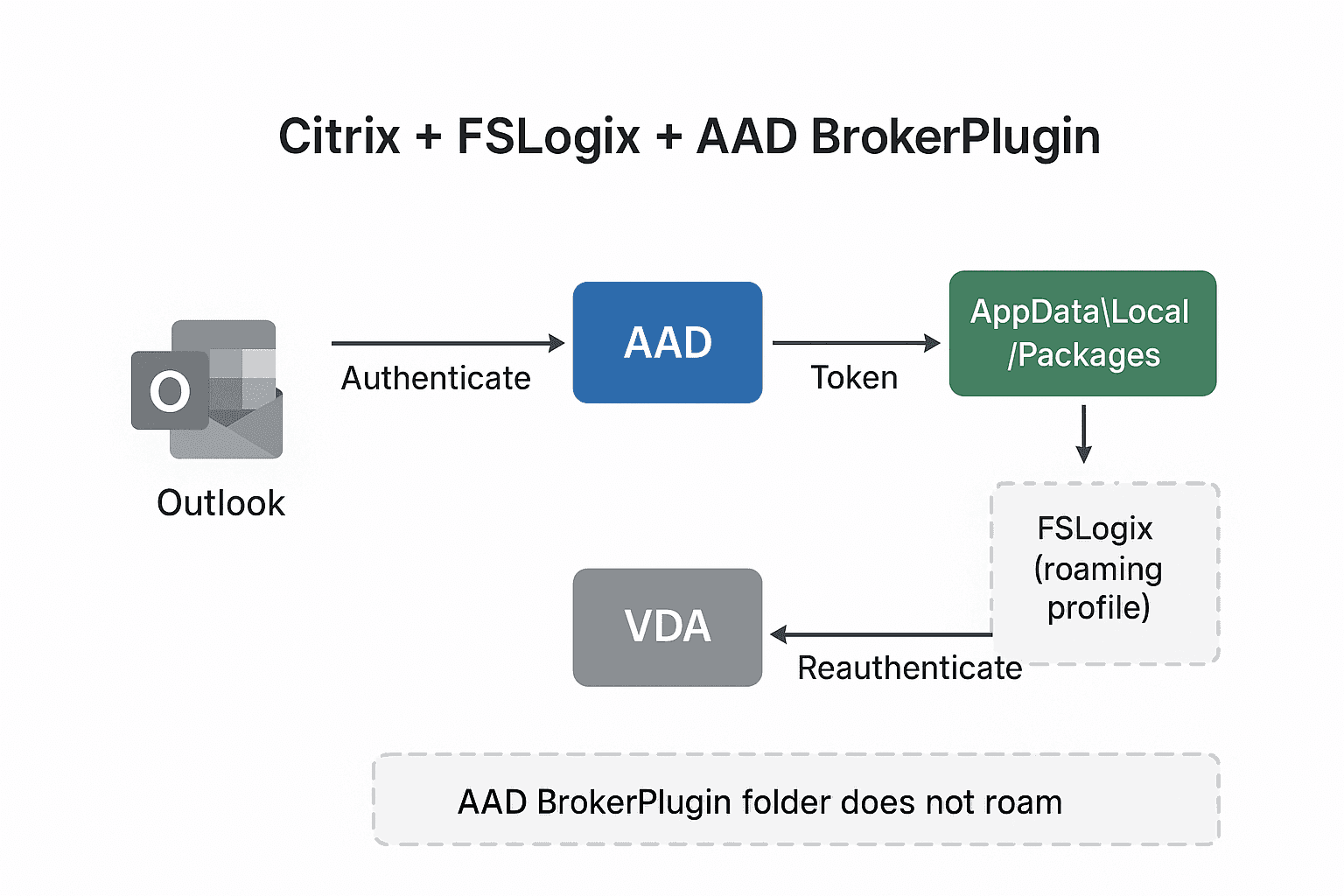
Issue: When the AAD BrokerPlugin (in blue) does not roam cleanly between VDAs/Servers in the virtual environment, it gives the user the error 58TM1, which means the authentication to Outlook is expired. This can also happen in a Windows computer outside of a virtual environment. Updating FS Logix actively to the recent version can help reduce this issue as Microsoft try to provide fixes for these errors.
Solution: By removing the existing folder for AAD BrokerPlugin for the user, it builds again, clears the issue and then the user can provide fresh login credentials and authentications.
Method: 9 steps
Before you start: make sure Outlook and all Microsoft Office apps are closed.
- 1
Open This PC
Go to This PC from the desktop of your computer (ensuring Outlook and all MS Office apps are closed).
- 2
Open the C: drive
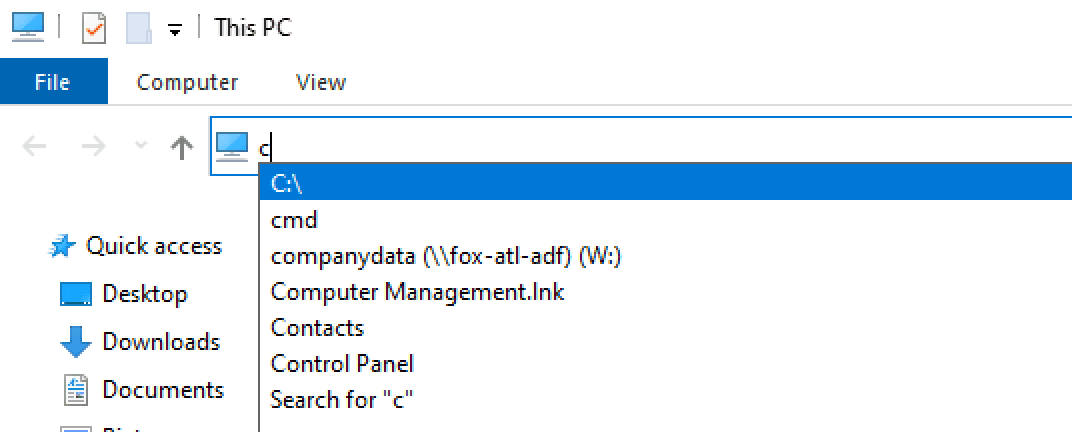
Type in C: in the search bar and press enter.
- 3
Open Users
Click on Users.
- 4
Open your user folder
Click on the username, e.g. john.doe.
- 5
Show hidden items
Click on View at the top and then tick Hidden Items.

- 6
Follow the folder path
Follow the path of this folder:
AppData\Local\Packages\Microsoft.AAD.BrokerPlugin_cw5n1h2txyewy
- 7
Delete the BrokerPlugin folder
Delete the entire folder Microsoft.AAD.BrokerPlugin_cw5n1h2txyewy.
If a backup folder also exists, delete it as well:
Microsoft.AAD.BrokerPlugin_cw5n1h2txyewy_backup

- 8
Sign out or restart
Sign out or restart your computer or Virtual Desktop profile.
By doing so, this will rebuild AAD BrokerPlugin.
- 9
Sign back in and open Outlook
Sign back in, open MS Outlook, and it should now cleanly prompt you to re-provide login credentials.
✓
Done. Outlook should now sign in cleanly with fresh credentials.